Compare plans
Choose one, two or three simultaneous connections on the IPTVStone pricing page.
Choose your device for a focused, step-by-step setup route, including helpful screenshots where supplied and answers to common questions.
Select a device to switch the guide below. You can use the return button to come back to this selection at any time.
From the Fire TV home screen, open My Apps.
Select Get more apps.
Choose Search, then press Down and OK and begin typing Downloader.
Select Downloader from the results and press OK, then select Download.
Wait for Downloader to finish downloading and installing. Do not open it yet; press Back and return Home.
Go to Settings → My Fire TV, then select About.
Highlight your Fire TV device and press Select seven times if developer options are not already visible.
Return to My Fire TV, open Developer Options and confirm ADB debugging if your device presents that prompt.
Open Install Unknown Apps and turn permission on for Downloader, then return Home.
Allow requested file access and dismiss the welcome message.
Enter the setup code or official source supplied with your subscription confirmation, then press Go.
Accept the player’s privacy or install prompt when appropriate, choose Install, wait for it to finish, then open the player.
Choose Add Playlist or Add User, select the supported login method and enter the subscription access details you received.
When the player asks, retain available TV and VOD channel options, then continue.
Wait around a minute for the channel list to load, then open Live TV to confirm playback.
Most Fire TV models work with compatible players. Confirm that you have enough storage space and stable Wi-Fi.
Add the playlist or Xtream Codes details in the player’s official playlist section using the subscription information you received.
Check the details you entered, then edit or delete and re-add the playlist if necessary.
Recheck app-install permissions if needed, clear the player cache if it is slow, reinstall for major issues, and test a VPN only when appropriate.
Search for Downloader in the Play Store and tap Install.
Press Allow when prompted, then select OK to continue.
Once Downloader is ready, use the official source or setup information provided with your subscription to install a compatible player.
Open the player, choose Add Playlist or Add User, choose the supported login method, and enter your server, username and password exactly as supplied.
Save the profile and allow channels and guide information to load before playback.
Most Android TV devices running Android 5.0 or newer work with a compatible player. Check Settings → About for your version.
Confirm that automatic guide updates are enabled in the player and allow a few minutes for the first full load.
Open MyTVOnline or DOL2 and choose Add Portal or the connection option.
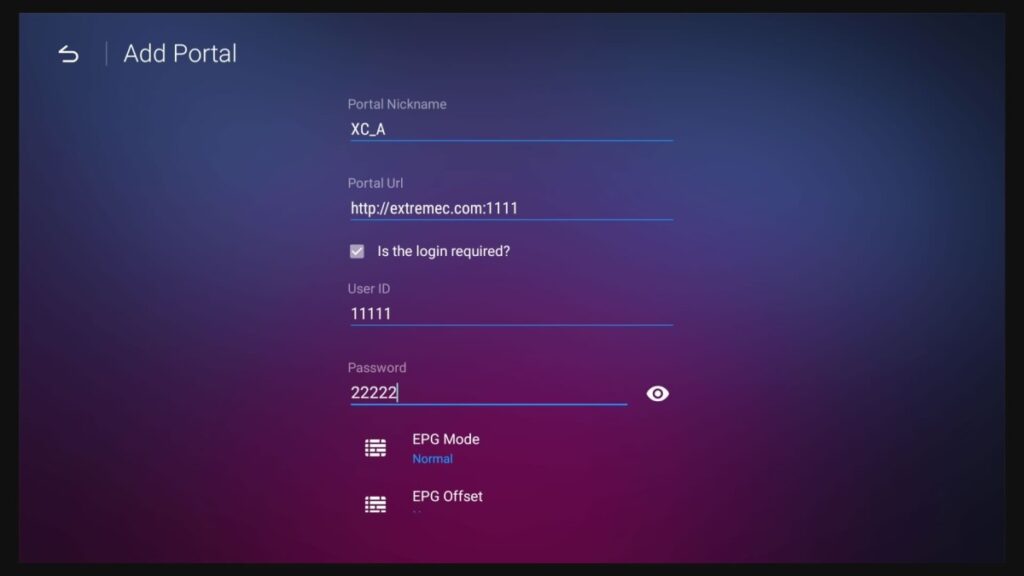
Choose Xtream Codes login when available. Enter a portal name, server URL, username and password exactly as supplied.
Enable login if the player asks, save the portal, then let the channel list load.
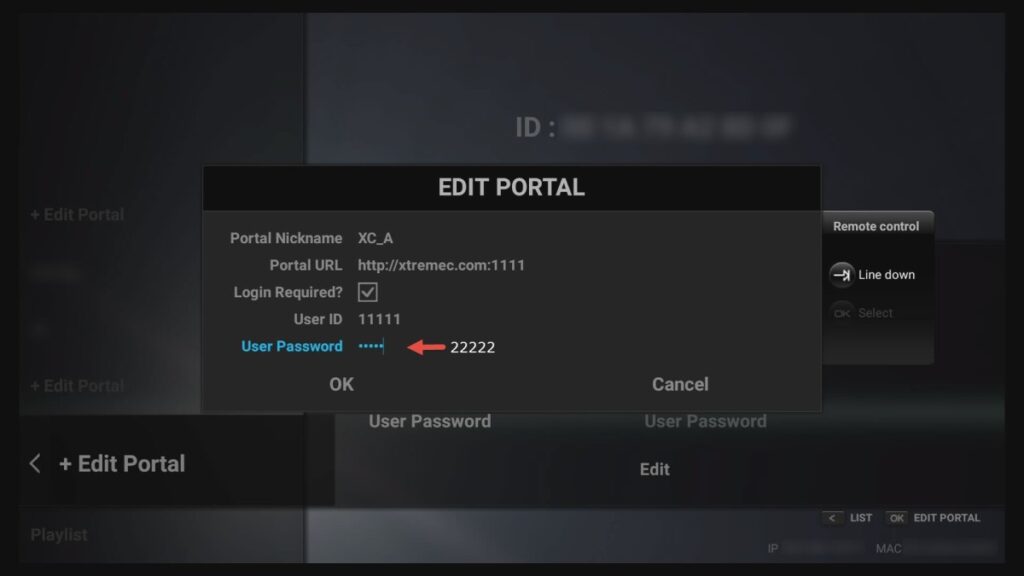
Open Live TV and test playback after the guide is ready.
Most Formuler routes use Xtream Codes login. Follow the credentials fields shown in your player.
Check that login is enabled, verify every credential, confirm a stable connection and restart MyTVOnline.
Open the LG Content Store, Samsung Apps, or the app store on your TV.
Search for a compatible IPTV player and install it.
Open the player’s settings and note the displayed MAC address only if the player asks for it.
Use the player’s supported login screen to enter the information supplied with your subscription, save, and test Live TV.
Availability can vary by model and region. A supported streaming stick or box may offer a wider choice of players.
Some players support multiple profiles. Refer to the player’s own instructions before adding another connection.
On Roku, open the Roku Channel Store.
Search the store for a player that supports the access format supplied with your subscription.
Select the player, add the channel, then open it from the home screen.
Use the supported login method in the player and enter your server, username and password exactly as supplied.
Save, refresh the player when prompted, and open Live TV after channels load.
When a Roku player uses a device address, it normally appears in that player’s Account or Settings area.
Confirm the device is online, recheck all supplied credentials, restart the player, and contact support with the exact error if needed.
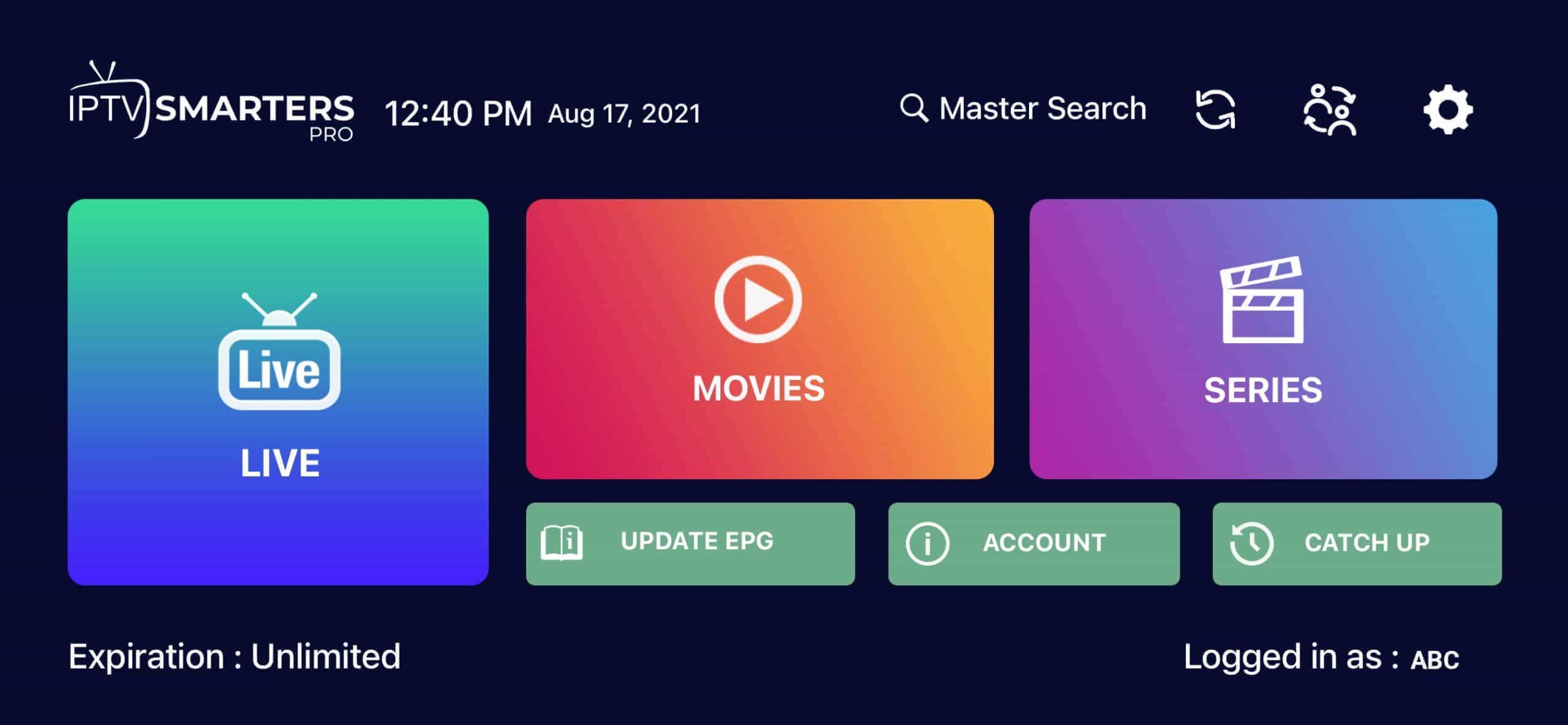
Download a compatible player, such as iMPlayer, from the App Store.
Open the app and choose Add a Playlist or Add User.
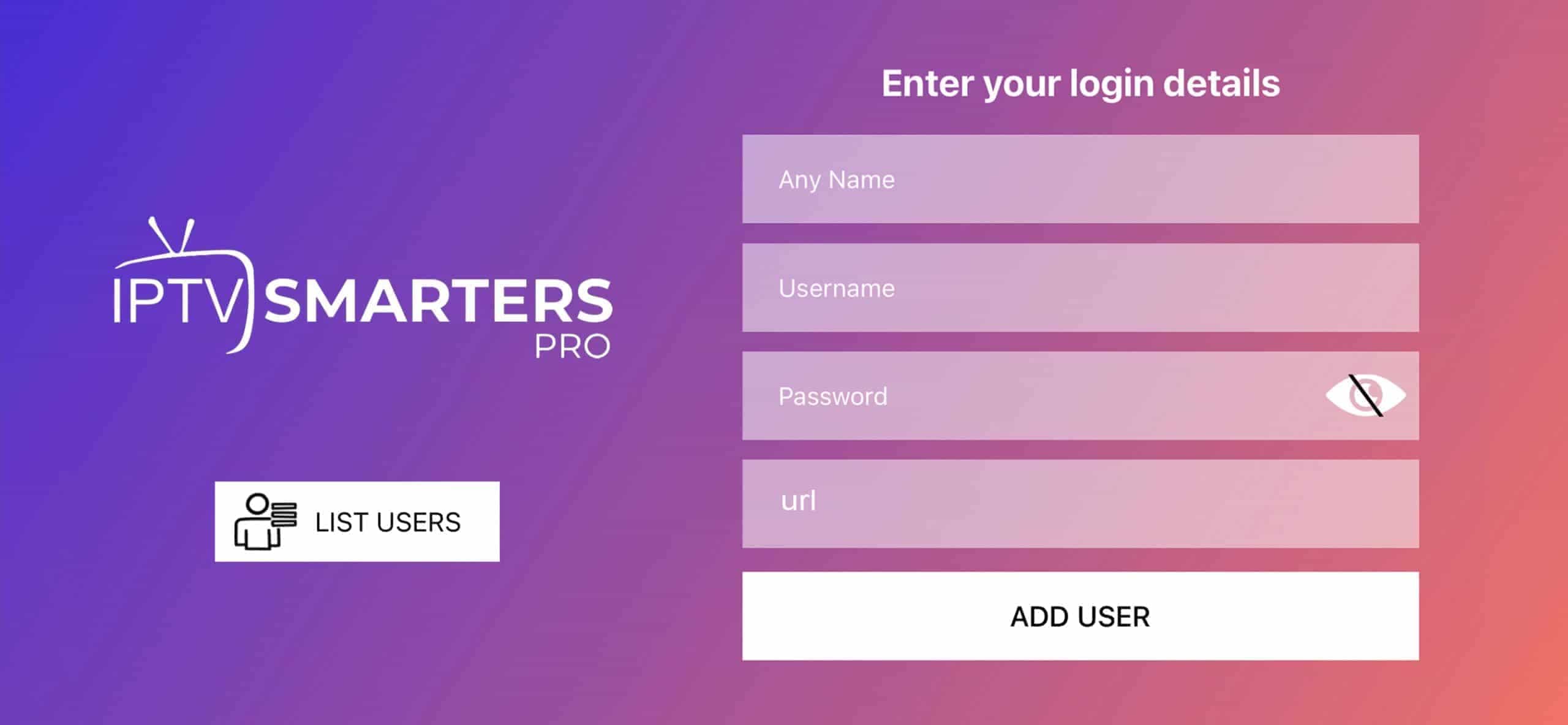
Select XC API or the format included with your subscription, then enter the server, username and password.
Save, wait for the channel list to load, and select Live TV.
Yes. Choose an iPad-compatible player from the App Store and use the same account details.
Confirm your internet connection, refresh the player and verify it supports the access format you received.
Open a browser and search for your chosen compatible player’s official website.
Choose the Downloads section on the official site.
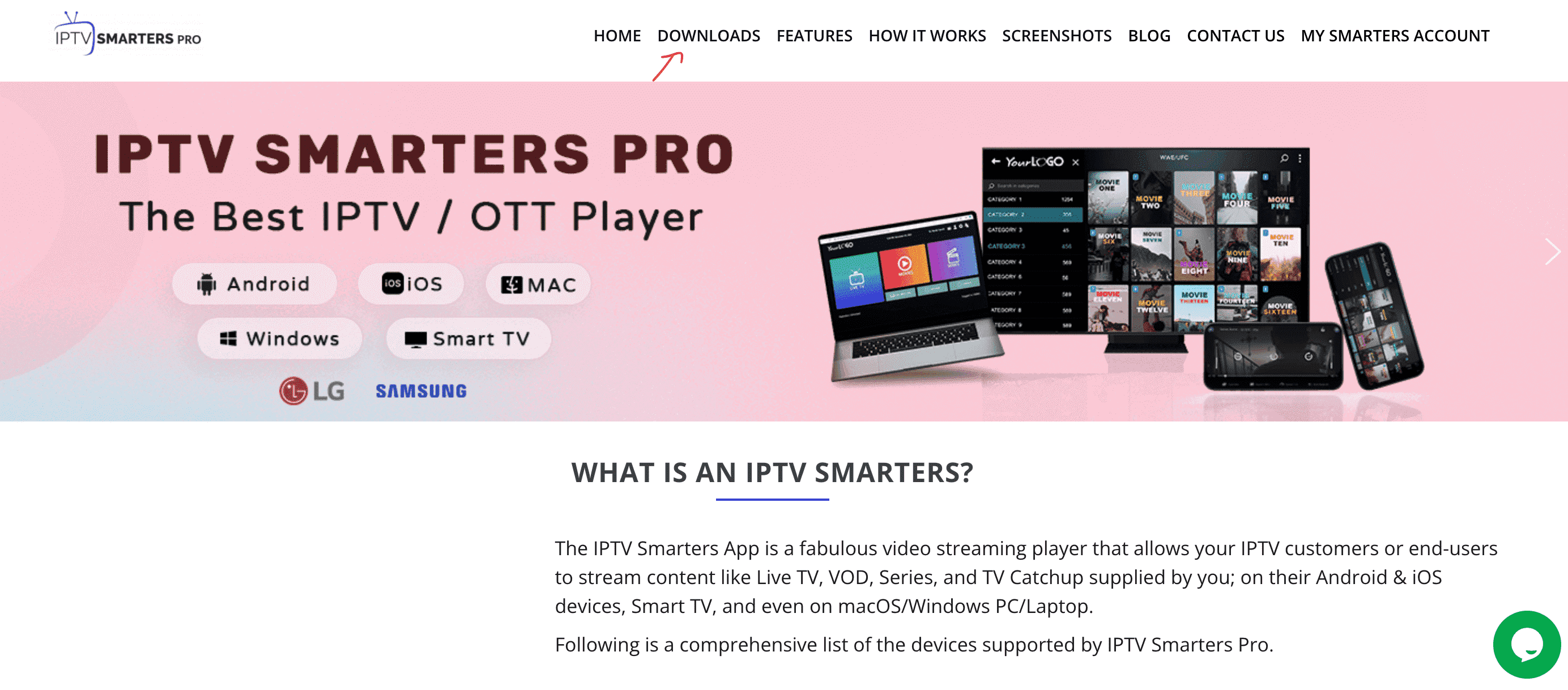
Download the Windows or Mac version, then open the downloaded installer.
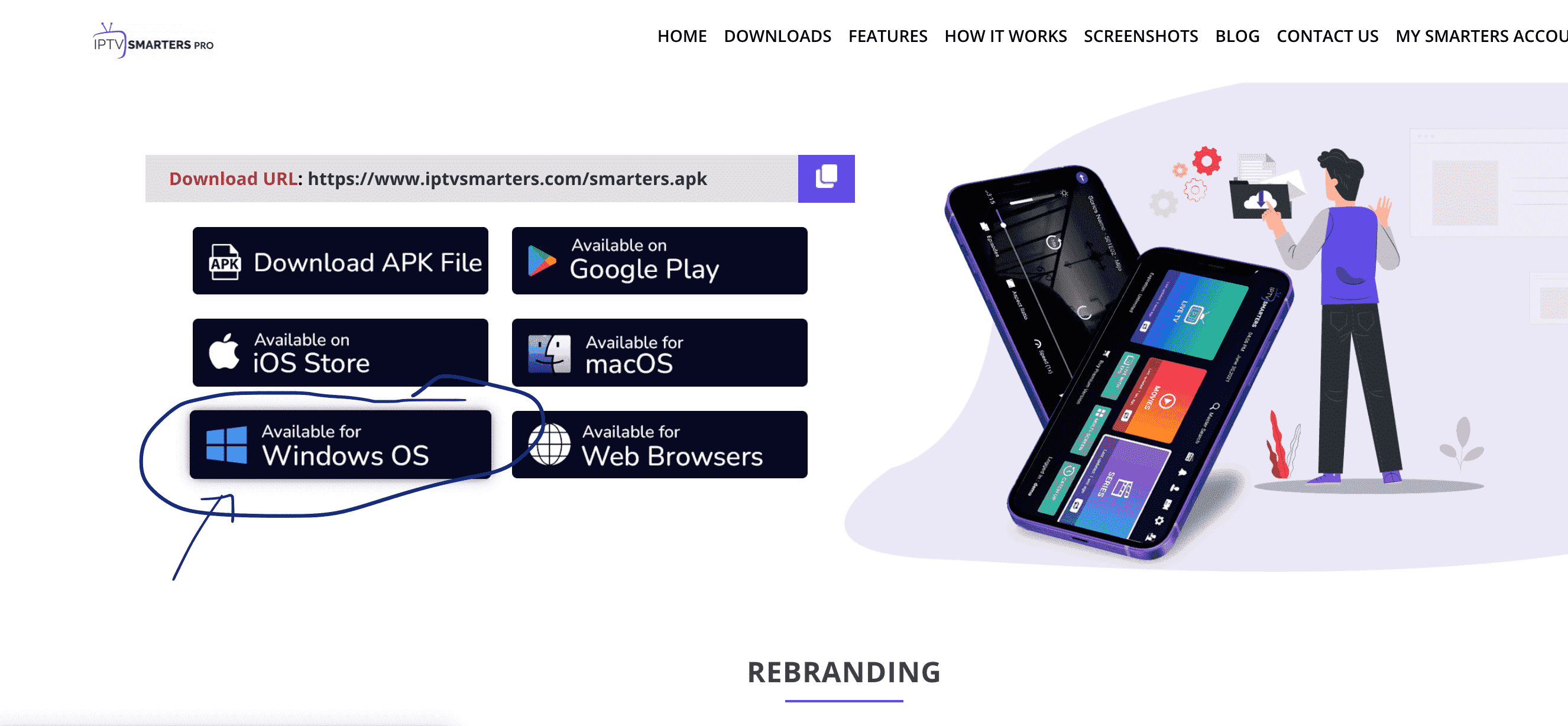
Follow your operating system’s install prompts and open the player after installation.
Select Add New User or Add Playlist, choose the supported login format and enter the supplied access details.
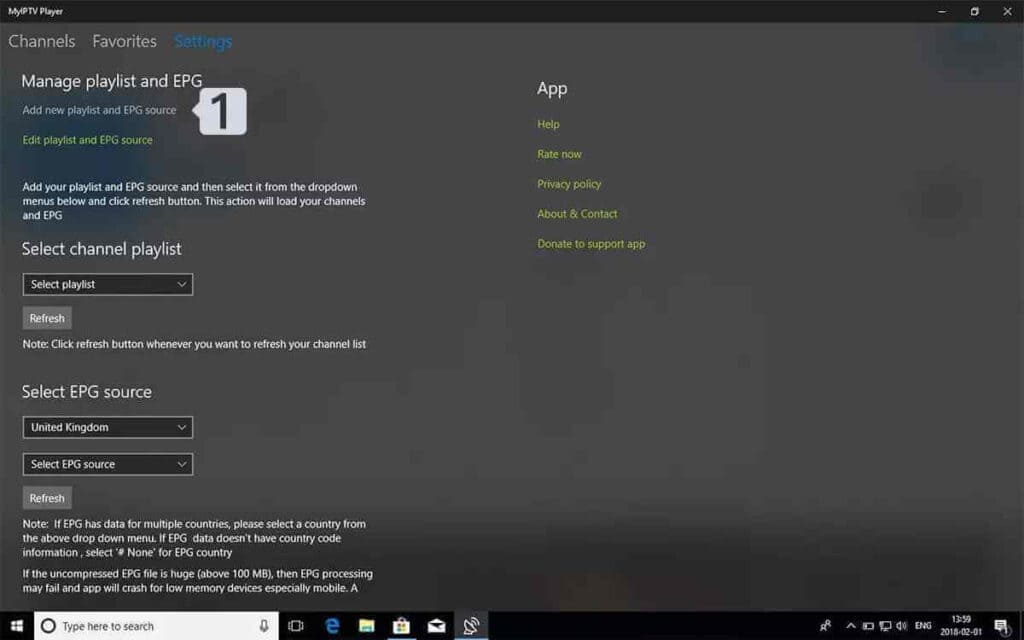
Save the profile, allow channels to load, and start Live TV.
VLC can play some M3U playlists, though a dedicated compatible player may provide a better guide and login experience.
Use a supported Windows or macOS version, sufficient free storage, and a stable internet connection.
Use Google Play to install a compatible player such as iMPlayer.
Open the player, tap Add a Playlist, and choose the supported login format.
Give the playlist a name, then enter the server URL, username and password provided with your subscription.
Save the profile, wait for the first channel load, then test Live TV.
Not necessarily. Some player upgrades unlock additional features, but a compatible player can be enough for basic use.
Casting depends on your player, phone and TV. Look for the cast icon or check your player’s supported features.
From the BuzzTV home screen, navigate to Server Settings.
Select XC API Login → Add XC API Login.
Enter any portal name, then your supplied portal URL, username and password.
Select Connect or Save, wait for the connection to finish, then return to the home screen and open Live TV.
Use XC API when you have a server address, username and password. Use another method only if your subscription instructions specifically require it.
Some BuzzTV players allow multiple connections. Check the device app options and keep each subscription’s details private.
Work through these quick checks before contacting support.
Check your internet connection. A stable connection of at least 15–20 Mbps is recommended for smooth HD streaming.
Make sure your credentials are entered correctly. These details are case-sensitive.
Update your IPTV player app to the latest version to avoid playback and loading issues.
Restart your device and reboot your router or modem.
If you are using a VPN, try another server or temporarily disable it to test whether it resolves the issue.
Clear the cache of your IPTV player app, then reopen it and test again.
Some internet providers may restrict streaming traffic. If you suspect this, a VPN may help improve access.
Open an answer for the most common setup questions.
About five minutes on most devices. Install a compatible player, enter the username and password from your subscription confirmation, and let the channel list load.
Open your TV’s app store, install a compatible player, then enter the subscription details you received. Use the Smart TV path above for the full route.
Use a modern player compatible with your device and the access format included with your subscription. Each guide above suggests the general route.
No. A supported smart TV, streaming stick, phone, tablet or computer can be enough.
A stable 10–15 Mbps connection is generally enough for HD; a stable 25 Mbps connection is more comfortable for 4K. Wired connections can improve stability on TVs.
The best player is one that runs smoothly on your device and supports the access format you received. Use the player route in your device guide and keep it updated.